

Noughts and Crosses with PyGame Part 2
A Python and PyGame implementation of the Noughts and Crosses / Tic Tac Toe game.

Overview
This is the second and final part of my short series on developing a Noughts and Crosses / Tic Tac Toe game using PyGame. In the first part I created the user interface, including a few buttons and radio buttons, and also added mouse click event handlers. In this article I'll complete the project by connecting it up to a class called NaC which I originally used in a console based version and which provides the game logic.
As I mentioned in Part 1 the NaC class has no front-end functionality and can be hooked up to any UI you may wish to write. It's worth reiterating how this is done, and again stressing that the NaC class does its stuff with no knowledge of the user interface which is "pulling its strings".
This is a summary, repeated from Part 1, of how the interactions between a UI and an instance of NaC work.
Front end code creates an instance of the NaC class, passing two functions:
on_change, called by NaC whenever a state change requires a UI update
on_game_over, called by NaC when the game ends, requiring the UI to notify the player
The UI notifies the NaC instance of player actions by calling the following methods:
human_move - when the player clicks a square
new_game - when the player clicks New
computer_move - when the player clicks Start
__level_changed - when the player selects a different level
The Project
The source code files, nac.py and nacpygame_2.py as well as the graphics can be cloned/downloaded from the GitHub repository. (The repository also contains nacpygame_1.py, the partial program from Part 1.)
The Code
This is the source code for the completed program. If you wish to look at the NaC class it's shown and described in the article on the console version but you can treat it as a "black box" if you are just interested in the PyGame UI. Note that this is nacpygame_2.py, the completed game.
from typing import Tuple, NamedTuple

from collections import namedtuple

import pygame

import nac


UIrect = namedtuple("UIrect", "x, y, w, h, func")


class NaCPyGame(object):

    def __init__(self):

        pygame.init()
        pygame.display.set_caption("CodeDrome NaC")
        self.win = pygame.display.set_mode((600,800))

        self.run = True
        self.graphics = self.__init_graphics()
        self.uirects = self.__init_rects()
        self.clock = pygame.time.Clock()

        self.game = nac.NaC(on_change=self.on_game_changed,
                            on_game_over=self.on_game_over)

        self.__draw_game_window()

        self.__event_loop()


    def on_game_changed(self, column:int, row:int, shape:str):

        self.__draw_game_window()


    def on_game_over(self, winner:str):

        self.__draw_game_window()


    def __init_graphics(self) -> None:

        '''
        Creates a dictionary of all the
        images used by the game.
        '''

        graphics = {"background": pygame.image.load('graphics/blackboard_600x800.jpg'),
                    "grid": pygame.image.load('graphics/grid.png'),
                    "nought": pygame.image.load('graphics/nought.png'),
                    "cross": pygame.image.load('graphics/cross.png'),
                    "levels": pygame.image.load('graphics/levels.png'),
                    "radio_on": pygame.image.load('graphics/radio_on.png'),
                    "start": pygame.image.load('graphics/start.png'),
                    "new": pygame.image.load('graphics/new.png'),
                    "youwon": pygame.image.load('graphics/youwon.png'),
                    "youlost": pygame.image.load('graphics/youlost.png'),
                    "nowinner": pygame.image.load('graphics/nowinner.png')}

        return graphics


    def __init_rects(self) -> None:

        """
        Top left coordinates, size and function
        for each area we wish to handle mouse clicks for
        """

        rects = [UIrect(0,   0,   200, 200, lambda: self.game.human_move(1)),
                 UIrect(200, 0,   200, 200, lambda: self.game.human_move(2)),
                 UIrect(400, 0,   200, 200, lambda: self.game.human_move(3)),
                 UIrect(0,   200, 200, 200, lambda: self.game.human_move(4)),
                 UIrect(200, 200, 200, 200, lambda: self.game.human_move(5)),
                 UIrect(400, 200, 200, 200, lambda: self.game.human_move(6)),
                 UIrect(0,   400, 200, 200, lambda: self.game.human_move(7)),
                 UIrect(200, 400, 200, 200, lambda: self.game.human_move(8)),
                 UIrect(400, 400, 200, 200, lambda: self.game.human_move(9)),

                 UIrect(28,  612, 246, 76,  lambda: self.game.new_game()),

                 UIrect(28,  710, 246, 76,  lambda: self.game.computer_move()),

                 UIrect(322, 616, 44,  44,  lambda: self.__level_changed(nac.NaC.Levels.IDIOT)),

                 UIrect(322, 682, 44,  44,  lambda: self.__level_changed(nac.NaC.Levels.AVERAGE)),

                 UIrect(322, 744, 44,  44,  lambda: self.__level_changed(nac.NaC.Levels.GENIUS))]

        return rects


    def __point_in_rect(self, pos:Tuple, rect:NamedTuple) -> None:

        """
        Check whether a coordinate is within a rectangle
        """

        x2 = rect.x + rect.w
        y2 = rect.y +rect.h

        in_rect = (rect.x <= pos[0] < x2 and
                   rect.y <= pos[1] < y2)

        return in_rect


    def __click_to_func(self, pos:Tuple) -> None:

        """
        Iterates rectangles and calls corresponding function
        for any which have been clicked
        """

        for rect in self.uirects:

            if(self.__point_in_rect(pos, rect)):

                rect.func()


    def __handle_left_mousebuttondown(self, pos:Tuple) -> None:

        self.__click_to_func(pos)


    def __level_changed(self, new_level):

        self.game.level = new_level

        self.__draw_game_window()


    def __draw_game_window(self) -> None:

        '''
        Draws the entire window after each change.
        For faster and more action-packed games
        there are ways to streamline this process.
        '''

        self.win.blit(self.graphics["background"], (0,0))
        self.win.blit(self.graphics["grid"], (0,0))
        self.win.blit(self.graphics["levels"], (300,600))

        if self.game.level == nac.NaC.Levels.IDIOT:
            self.win.blit(self.graphics["radio_on"], (330,622))
        elif self.game.level == nac.NaC.Levels.AVERAGE:
            self.win.blit(self.graphics["radio_on"], (332,686))
        else: # "genius"
            self.win.blit(self.graphics["radio_on"], (334,748))

        self.win.blit(self.graphics["start"], (0,700))
        self.win.blit(self.graphics["new"], (0,600))

        x = 0
        y = 0
        for row in range(0,3):
            for column in range(0,3):
                if self.game._squares[row][column] == "X":
                    self.win.blit(self.graphics["cross"], (x,y))
                elif self.game._squares[row][column] == "O":
                    self.win.blit(self.graphics["nought"], (x,y))
                x += 200
            y += 200
            x = 0

        if self.game.winner == " ":
            self.win.blit(self.graphics["nowinner"], (0,100))
        elif self.game.winner == "X":
            self.win.blit(self.graphics["youwon"], (0,100))
        elif self.game.winner == "O":
            self.win.blit(self.graphics["youlost"], (0,100))

        pygame.display.update()


    def __event_loop(self) -> None:

        """
        Checks event queue every 50ms
        for QUIT or left MOUSEBUTTONDOWN
        """

        while self.run:

            self.clock.tick(50)

            for event in pygame.event.get():

                if event.type == pygame.QUIT:

                    self.run = False
                    pygame.quit()
                    break

                elif event.type == pygame.MOUSEBUTTONDOWN:

                    if event.button == 1:

                        self.__handle_left_mousebuttondown(event.pos)


game = NaCPyGame()
Most of the code is carried across from Part 1 so I'll just describe the additional code which interacts with the NaC class.
__init__
This now creates an instance of the NaC class, passing two functions. The first, on_game_changed, will be called by the NaC instance when the game state has changed, and the second, on_game_over, when the game is finished.
Both these functions simply call __draw_game_window which I'll get to shortly, and take arguments which are not used here but could come in useful depending on how the front end is coded. They are used, for example, in the console based game.
__init_rects
The first version of __init_rects function, which maps areas of the window to mouse clicks and their corresponding functions, simply printed to the terminal or selected/deselected radio buttons. In this, the final version, we actually call methods of the NaC class, the method names being self-explanatory.
__draw_game_window
There are three main areas where this function has been upgraded. Firstly, we need to check the level property of NaC to decide which radio button to select by drawing a small circle in the appropriate place. Next we need to iterate the rows and columns in NaC and draw an X or O where necessary. Finally we need to check whether the game is over, either with no winner, the human player winning or the computer winning. In each case the relevant graphic is shown.
Running the Program
Now we can run the program thus.
python3 nacpygame_2.py
This is a screenshot of a completed game.
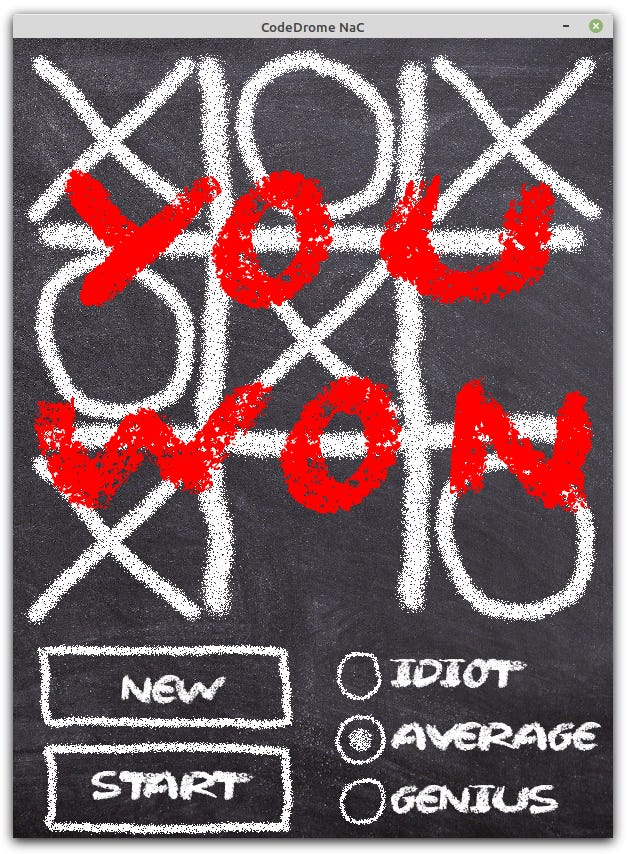
As I mentioned in the previous article this is my first PyGame project and I am reasonably pleased with the result. Seasoned PyGame developers might be shocked at my amateurishness - constructive comments welcome!
Along the way I have thought up a number of ways PyGame development in general could be improved and streamlined. These include:
Object oriented controls
The Command pattern to simplify mouse and keyboard options for the same function
Skinning
Binding controls to state
The Observer pattern
Separating UI design from code (possibly using XML?)
These will form the subjects of future articles, and I also have a Pyglet version of the Nought and Crosses game in the pipeline.